
Blog
How WordPress Dashboard Auto-Updates Work with Authentic License Keys

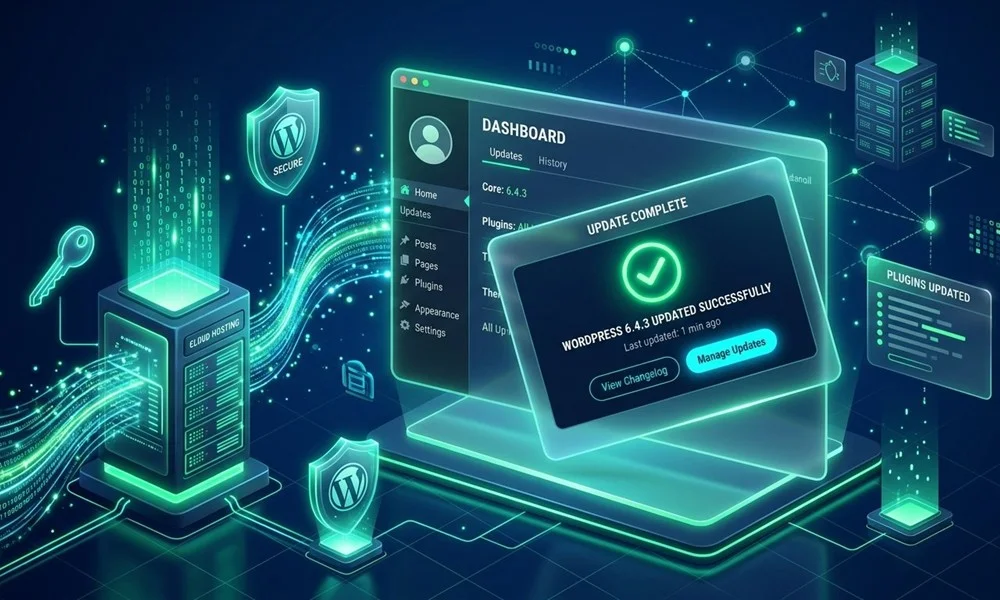
One of the most powerful features of modern WordPress is the seamless ability to update themes and plugins with a single click directly from the Dashboard > Updates screen. Yet behind that simple “Update Now” button lies a sophisticated API architecture designed to verify software authenticity, prevent unauthorized downloads, and protect websites against critical vulnerabilities.
In this guide, we dive into the technical mechanics of how WordPress handles automatic updates, why genuine license keys are indispensable for security, and how WP Original Key ensures continuous, seamless dashboard updates for all your essential tools.
1. The Architecture of the WordPress Update System
To understand why authentic license keys matter, it helps to examine how WordPress core checks for software updates:
- The Transient Cache: WordPress periodically triggers a scheduled background process (via
WP-Cron) that inspects installed themes and plugins. - The REST/API Handshake: For commercial plugins, the plugin author hooks into WordPress core filters (such as
pre_set_site_transient_update_plugins) and sends an HTTPS POST request to their proprietary licensing server. - License Key Validation: The developer’s server checks the license key, domain registration, and subscription status sent in the payload.
- Download Package Generation: If the license is valid and active, the remote server returns a temporary signed download URL pointing to the latest version ZIP package.
- In-Place Replacement: WordPress core downloads the package, verifies the archive structure, replaces old files, and executes any required database migrations without disrupting your live website.
2. Why Nulled & GPL Versions Break the Update Pipeline
When you download a nulled or untracked GPL plugin from a file-sharing forum or club, the developer’s licensing verification code has usually been circumvented or stripped. While the plugin may appear functional on day one, the consequences quickly cascade:
- Silent Failure: Because the plugin cannot pass valid authentication tokens to the developer’s server, WordPress will never notify you when a new release is available.
- Manual Re-upload Friction: To update, webmasters are forced to download a new ZIP from third-party sites, deactivate the plugin, upload via FTP or admin, and risk configuration loss.
- Vulnerability Windows: The delay between an official security patch and a third-party upload is typically several days or weeks—more than enough time for automated vulnerability scanners to breach your server.
For a detailed breakdown of these risks, read our companion guide on GPL vs Original License Key in WordPress: Security & Comparison Guide.
3. How Authentic License Keys Enable Zero-Downtime Security
Security researchers uniformly agree that keeping software updated is the single most effective defense against WordPress malware. Authentic license keys provide three critical advantages:
1. Immediate Zero-Day Patches
When security vulnerabilities (such as SQL injections or cross-site scripting) are identified in major plugins like page builders or form handlers, developers deploy immediate hotfixes. With a genuine license key, that patch appears in your dashboard within minutes of deployment.
2. Cloud Asset & Template Library Synchronization
Modern tools (including Elementor Pro, Astra Pro, and Spectra Pro) store their pre-built template libraries in cloud buckets. Accessing these cloud blocks requires an active API handshake. Genuine license keys unlock unrestricted access to developer cloud templates directly from your editor.
3. Seamless Background Auto-Updates
With WordPress 5.5 and later, administrators can toggle “Enable auto-updates” on individual plugins. With authentic licenses, you can set routine plugins to update automatically overnight, freeing your engineering team from routine maintenance overhead.
4. How WP Original Key Activates Direct Dashboard Updates
At WP Original Key, we provide genuine license keys configured for official remote validation. When you purchase a license from our Shop, you receive an authentic key that hooks directly into the official repository.
Your website communicates directly with the developer’s authentic update server—guaranteeing 100% clean code, instant dashboard notifications, and complete peace of mind.
Step-by-Step: Activating License Keys in Your WordPress Admin
- Navigate to your plugin’s licensing or settings screen (e.g. Elementor > License or Astra > Dashboard).
- Paste the genuine license key provided in your WP Original Key account dashboard.
- Click Activate License. The green “Active / Connected” status badge will confirm the connection.
- Future updates will now appear automatically in Dashboard > Updates with standard one-click functionality.
Related Guides & Products:
- Step-by-step activation instructions: Elementor Pro License Activation Guide.
- The definitive security comparison: GPL vs Original License Key Security Guide.
- Equip your projects with genuine licenses: Elementor Pro License Key and Astra Pro License Key.


